Start with your first note and work up to tiles, sync and the leader key. Every chapter is short and has a picture of the real app, so you can read it beside the app and follow along.
HushJot is one window. Your notes are on the left, the note you are writing is in the middle, and a few tools sit along the top. Everything else is a shortcut away.
hushjot.app
1234567
Folders and tags. Every folder you make and every #tag you type.
The note list. Pinned notes first, then the rest, newest first.
The toolbar. Theme, text size, line wrap, search, new note, sync, account and lock.
The editor. Where you write, in Markdown.
View switch. History, then editor, split or preview, for each note.
The preview. The same note, formatted.
The status bar. Word count on the left. On the right, whether your text is saved.
Reading the shortcuts. This guide shows Mac keys. On Windows and Linux, use Ctrl for ⌘, Alt for ⌥, and Shift for ⇧. On a Mac, Ctrl works too. When you see ⌘JN, press ⌘J, let go, then press N.
Part 1
The basics.
Set up, write, format, and make it look the way you like. About five minutes.
Basics · 1
Get started
Open hushjot.app in any modern browser. There is nothing to download.
Choose how to start.Use this device only is free and needs no account: your notes live only in this browser, and clearing browser data deletes them, so export a copy now and then. Sign in to sync keeps your notes the same on all your devices. It needs an account with a sync plan, which you create at hushjot.com/account. Your notes are encrypted either way.
Choose a passphrase. It encrypts your notes and never leaves your device. Press Generate for a strong one made of random words, or type your own. It must be at least 10 characters. The meter under the box shows how strong it is, and common passwords are refused.
Save your recovery code. It is shown once. Write it down or put it in a password manager, tick the box, and press Continue.
Step 1: choose sync or this device.Step 2: a passphrase, with a strength meter.Step 3: the recovery code, shown once.
Keep the recovery code safe. If you forget your passphrase, the code lets you set a new one: on the unlock screen, choose Use recovery code instead. If you lose both, nobody can open your notes, not even us. That is the price of real end-to-end encryption. With sync, you can still start over on the same account: see Locking and privacy.
TipStay unlocked on this device is on by default, so you are not asked for your passphrase every time. Turn it off on a computer you share with others.
Basics · 2
Write your first note
New notebooks start with two notes. Welcome to HushJot is a hands-on tour of every shortcut, and Scratch is for anything at all.
Start a note with + Note in the toolbar, or ⌘JN. (⌘N also works in browsers that let a web page use it.)
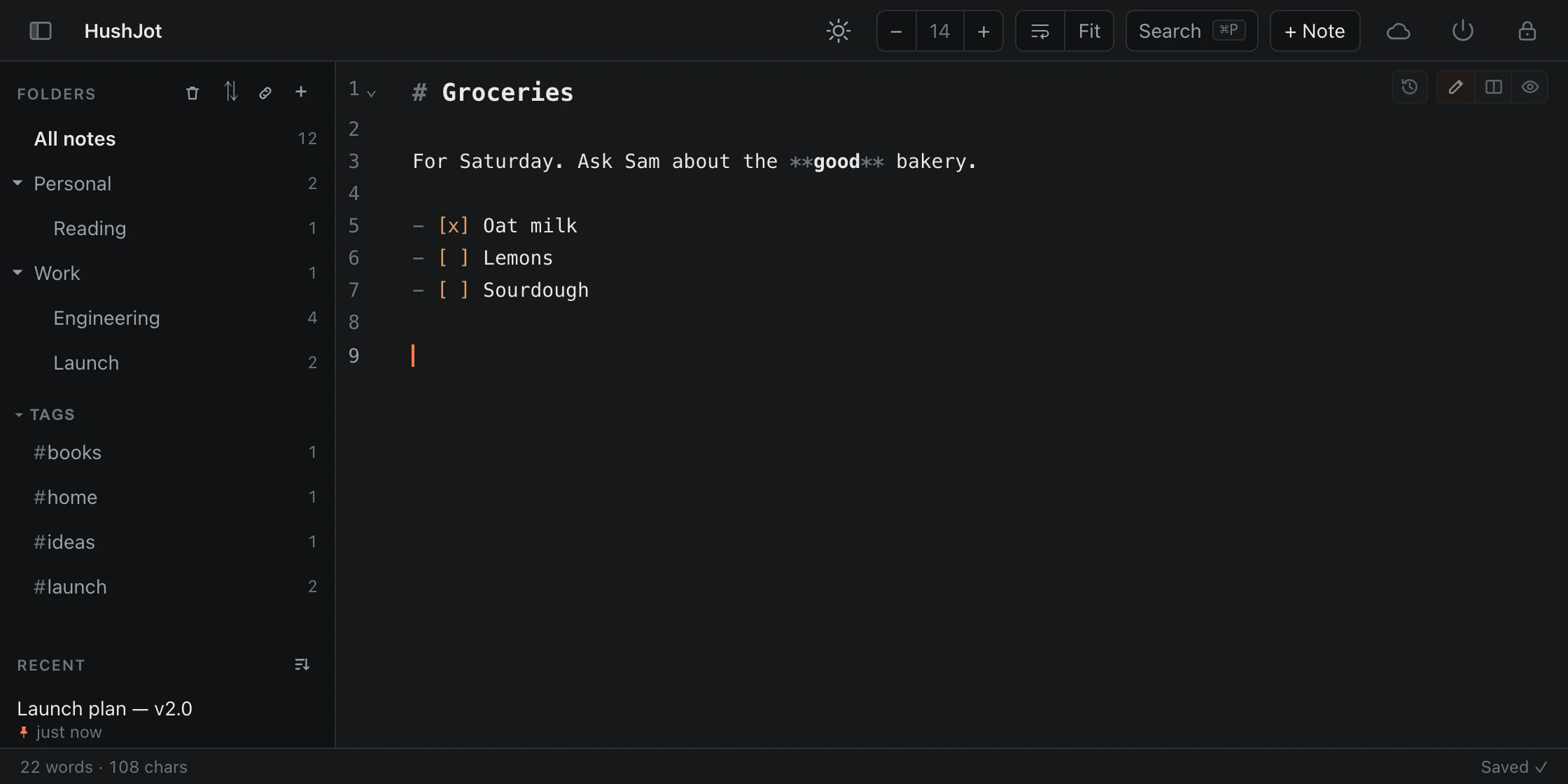
The first line is the title. There is no separate title box. # Groceries becomes a note called “Groceries”.
There is no Save button. Your text is saved as you type, and it is still there after a reload or with no connection. The status bar says Saved ✓.
Find text in this note with ⌘F.
Delete a note from its ⋯ menu or with ⌘JD. You can Undo right away, and deleted notes are kept for 30 days.
hushjot.app
A new note. The first line is its title, and the status bar confirms it is saved.Basics · 3
Format with Markdown, or with shortcuts
HushJot notes are Markdown, a plain-text way to write headings, lists and links that works in any app. If you don’t know Markdown, use the shortcuts and HushJot writes it for you.
Bold, italic, strikethrough
⌘B⌘I⌘⇧X
Link
⌘K
Heading 1 to 6
⌘⌥1 … ⌘⌥6
Numbered, bullets, tasks
⌘⇧7⌘⇧8⌘⇧9
Tick a task, or add a table row
⌘↩
Quote
⌘⇧.
Code block
⌘E
Paste as code
⌘⇧V
Table
⌘⌥T
⌘⌥T opens the table picker. Use the arrow keys, or type a size like 3x4.
Press it again to undo it. Each formatting shortcut wraps the selected text, and pressing it again takes the formatting off. With nothing selected, it formats the word under the cursor.
Wrap without shortcuts. Select text and type `*_~ or ' to wrap it. Paste a web address over selected text to make it a link.
Lists keep going. Press Enter in a list or quote and the next line continues it.
Code is highlighted in about 150 languages. ⌘E opens a code block and suggests a language: type a few letters, press Tab to pick one, then Enter. In the preview, every code block has a Copy button.
In a table, Tab and ⇧Tab move between cells, and the columns line up as you go. Moving past the last cell adds a row.
Beyond the basics, HushJot also renders ==highlights==, footnotes, definition lists, H~2~O and x^2^, and :emoji: names. The Markdown cheat sheet has every one on two printable pages.
Diagrams come from a ```mermaid block: flowcharts, sequence diagrams, gantt charts and more are drawn in the preview, in your light or dark theme, on your device. If the diagram has a mistake, the preview shows its source with the error under it.
Basics · 4
Edit, split, preview
Each note can be shown three ways. Use the icons at the top right of the note: pencil, split and eye. ⌘⇧E cycles through them.
hushjot.app
Split view: the Markdown and the formatted result side by side.
⌘JE Editor only
Just the text. The fastest way to write.
⌘JS Editor and preview
Both, side by side. Desktop only.
⌘JP Preview only
The formatted note. You can still tick tasks, and tags and links are buttons.
⌘⇧E Cycle
Goes round all three.
Private by designThe preview never loads images from the web. Loading one would tell another server that you opened the note. An image shows as a link you can open yourself.
Basics · 5
Make it yours
HushJot has no settings page. Everything is in the toolbar or in the Appearance menu, ⌘J,. Your choices are remembered on each device.
Light or dark: the moon or sun in the toolbar, or ⌘JI. ⌘J⇧O goes back to following your system.
Text size: the − 14 + buttons, or ⌘=⌘-, and ⌘0 to reset. Only the note text changes size.
Line wrap: fit to the window, a fixed width from 40 to 160 characters, or no wrap. Toggle with ⌘J⇧W.
Editor font: monospace, sans serif or serif.
Focus mode:⌘JY hides everything except the note.
Hide the sidebar: the panel icon at the top left, or ⌘JB.
Spellcheck: on or off with ⌘JV.
The Appearance menu, ⌘J,.
Part 2
Every day.
Find notes, keep them organised, and get back anything you change or delete.
Every day · 6
Find anything with ⌘P
Press ⌘P, or click Search in the toolbar, and start typing. It searches every title and every word of every note. The search runs on your device, so even your search terms stay private.
Type
To find
invoice
Notes with that word
#work
Notes with that tag
in:Engineering
Notes in that folder and the folders inside it
"exact phrase"
Those words, in that order
-draft
Notes without that word
>
Commands, not notes
Combine filters: in:Engineering #postgres slow.
TipIn the results, Enter opens a note and ⌘↩ opens it beside the one you are in. Pinned notes come first.
Every day · 7
Folders, tags and pins
Use folders, tags, pins, or any mix of them.
Folders, tags, then your notes.
Folders
Make one with the + beside Folders, or ⌘JF. ⌘J⇧F makes a folder inside the one you are in.
Drag a note onto a folder to move it, or a folder onto another folder to put it inside. Drop on All notes to move it back to the top level.
Or use the keyboard: ⌘JM moves the note you are in, and ⌘JO opens a folder.
A folder’s ⋯ menu has New subfolder, Rename, Move to…, Export as zip and Delete.
Tags
Type # and a word anywhere in a note: #recipes. Use a slash to nest them: #work/clients.
Tags you already use are suggested as you type. Tagged notes are grouped under Tags in the sidebar, and ⌘J⇧T jumps to one.
Pins and sorting
Hover a note and press the pin, or press ⌘J⇧P. Pinned notes stay at the top of every list.
Sort by date edited, date created or title with the sort icon beside Recent, or ⌘JZ.
Every note has a ⋯ menu, and it shows the shortcut for each action.
The note list from the keyboard
⌘JL moves you into the list. Then:
↑ ↓ Home End
Choose a note
Space
Peek without leaving the list
Enter
Open
⌘↩
Open beside
Delete
Delete
Esc
Back to the editor
Every day · 8
Link notes together
Put a note’s title in double square brackets to link to it, for example [[Pricing ideas]]. To show different words, use [[Pricing ideas|the pricing note]]. Tap or click a link and choose Open note, or ⌘-click to go straight there. If no note has that title yet, you can create it in one tap.
After [[, matching titles are suggested.
Follow a link with ⌘-click, or put the cursor on it and press ⌘J⇧L. In the preview, a link is a button.
Go back to the note you came from with ⌘JJ.
Link before you write. If no note has that title yet, following the link offers to create it.
Every day · 9
Get back what you changed or deleted
HushJot keeps earlier versions of every note, and keeps deleted notes for 30 days.
Note history: pick a version to see what changed since then.
Note history ⌘JH
Open it with the clock icon at the top of a note. A version is saved when you come back to a note after a break, every 10 minutes while you write, and before any delete or restore. Every version is kept for a day, one an hour for a week, and one a day for 30 days.
Choose a version, then switch between Changes, Preview and Text to see it. Then Restore this version, Restore as new note, or Copy just the part you need.
Recently deleted ⌘JU
Open it with the bin icon beside Folders. Deleted notes are kept, still encrypted, for 30 days. Restore puts a note back in its folder, and Restore as new note keeps a copy beside the original.
Right after a delete, you can also press Undo in the message at the bottom of the window.
Recently deleted. Notes are kept for 30 days, then removed for good.Every day · 10
Locking and privacy
Your notes are encrypted on your device before they are stored or synced. What follows is up to you.
Lock with the padlock at the top right, or ⌘JQ. HushJot closes your notes and asks for your passphrase to open them again.
Stay unlocked on this device keeps you signed in between visits. Turn it off on a shared computer, and HushJot asks for your passphrase each time you open it.
Change your passphrase or get a new recovery code from the Account window, ⌘JA. Your notes are not re-encrypted, so a passphrase change is instant. A new recovery code replaces the old one, which stops working.
Lost both? Nobody can open those notes again. If you sync, choose Lost both? Start over with a new vault on the unlock screen: after your account password and typing erase, it deletes the synced notes and you create a new vault on the same account and plan. Without sync, Remove all data from this device starts this device afresh.
Exports are not encrypted. A file you download can be read by anyone who has it, so keep it somewhere safe.
Learn moreThe security page explains exactly what is encrypted, what our server can and cannot see, and what HushJot does not protect against.
Every day · 11
On your phone
HushJot is the same app on a phone, laid out for one hand. Install it and it opens from your home screen like any other app, and it works offline.
The list, with the tab bar at the bottom.
Editing, with the Markdown key bar.
Install it
iPhone and iPad: in Safari, tap Share, then Add to Home Screen.
Android: in Chrome, tap Install app when it is offered, or use the browser menu. Once installed, HushJot also appears in the share sheet.
Mac: in Safari, choose File → Add to Dock. In Chrome or Edge, use the install icon in the address bar.
Getting around
The tab bar has Notes, Search, New and More. More has every other command.
Tap the folder name at the top (All notes ▾) to switch folder or tag.
Swipe a note in the list to pin or delete it.
When you edit, a key bar above the keyboard puts Markdown one tap away. What each key does is below.
The key bar
Each key does the same as a desktop shortcut, shown after it. The bar scrolls sideways when it is wider than the screen.
H Heading
Each tap goes heading 1, 2, 3, then back to plain text. ⌘⌥1 … ⌘⌥6
B Bold and I Italic
Formats the selected text, or the word the cursor is in. Tap again to take it off. ⌘B⌘I
• Bullet list
Turns the line into a bullet, or back into plain text. ⌘⇧8
☑ Task list
Turns the line into a checkbox item. To tick it, switch to Preview and tap the box. ⌘⇧9
❝ Quote
Starts the line with >, or takes it off. ⌘⇧.
🔗 Link
Wraps the selection as [text](…) with the cursor where the address goes. ⌘K
</> Code block
Opens a code block and suggests a language: type a few letters and pick one. ⌘E
⇤ Outdent and ⇥ Indent
Moves the line out or in, which un-nests or nests a list item. ⇧TabTab
↶ Undo and ↷ Redo
Takes back your last change, or puts it back. ⌘Z⌘⇧Z
⊞ Insert row
Only while the cursor is in a table, first on the bar. Adds an empty row below the one you are in. In a table, Enter moves down a row. ⌘↩
⌄ Hide keyboard
Always at the right-hand end. Closes the keyboard and the bar with it.
Part 3
Power user.
Run everything from the keyboard, keep several notes open, and use HushJot across devices.
Power user · 12
The leader key: ⌘J, then one key
Browsers keep most two-key shortcuts for themselves, so HushJot puts most of its commands behind one key. Press ⌘J, let go, then press a single key. If you pause after ⌘J, a list of every key appears. A capital letter in that list means hold Shift.
Pause after ⌘J to see what each key does.
The command palette
Don’t remember a key? Open the palette with F1, ⌘⇧P or ⌘J?, or type > in ⌘P. Type part of a command’s name, and each command shows its shortcut, so you learn it as you go.
In Firefox, ⌘⇧P opens a private window, so use F1 there.
Type part of a command’s name.
Power user · 13
Tiles: up to four notes at once
On a computer, you can open notes side by side: a spec next to its checklist, or a recipe next to the shopping list. Each tile has its own view, so one can be in preview while another is in the editor.
hushjot.app
Four tiles in the 2 × 2 grid.
⌘\ or ⌘JT
Pick a note to open beside this one. From search or the note list, ⌘↩ does the same.
⌘JG
Change the layout: side by side, stacked, or a 2 × 2 grid. The layout button in the toolbar does the same.
⌘J1–4, []
Jump to a tile, or to the previous or next one.
⌘JW
Close the tile you are in. The × on each tile does the same.
Power user · 14
Sync across your devices
With a sync plan, your notes are the same on every device you sign in on. What leaves your device is already encrypted, so our server stores only data it cannot read.
Get a plan at hushjot.com/account. Plans are bought on the website, never in the app.
Sign in in the app. Choose Sign in to sync when you start, or press Set up syncing on the notice HushJot shows when your notes are on one device only.
On each new device, sign in first, then unlock with the same passphrase. That device then downloads your existing notes.
The cloud icon in the toolbar
SyncedAll changes uploaded
Syncing…Sending or fetching changes now
3 changes waiting to syncThey upload soon. ⌘S syncs now.
OfflineChanges are saved on this device and upload when you are back online
Sync storage fullYour account is out of room; changes wait on this device until you free some or add storage
Sync failed — retryingSomething went wrong; HushJot keeps trying
Sync needs a planSigned in, but there is no active subscription
Session expiredSign in again to resume syncing
Not signed inNotes stay on this device
Both edits are kept if two devices edit at once. HushJot keeps both versions, and the second appears as a note marked (conflict copy …). Compare them and keep what you want.
Several tabs are fine. One tab does the syncing, and the others stay up to date.
The Account window, ⌘JA or the power icon, shows your plan, how much storage you use (it warns at 80%), and a link to manage your subscription.
Power user · 15
Share a note by link
Send someone a link to one note. They don’t need an account, and our server can’t read the note either. Sharing needs an account with sync.
Open the note and choose Share by link… from its ⋯ menu, or press ⌘J⇧S.
Choose when it expires: 1 hour, 1 day, 7 days or 30 days.
Press Create link. The link is copied, ready to paste.
Share by link×
Publish “Lisbon, long weekend”
Expires7 days ▾
Create linkcopies to clipboard
The note is encrypted with a new key that travels in the part of the link after the #, which browsers never send to a server. Anyone who has the link can read this note until it expires.
A link is a snapshot. Edits you make later don’t show until you press Update link.
Revoke a link at any time. All your links are in one list: the chain icon beside Folders, or ⌘JK.
What they see: a read-only page, made for phones too, where they can switch between formatted text and Markdown, change the theme, text size and font, copy, download, or Save to my notes if they use HushJot too. Saving shows them the whole note first, with Save and Dismiss.
Limits: up to 100 links a month (an update counts as one), and a note of up to about 900 KB.
Power user · 16
Export, import and quick capture
Your notes are plain Markdown, so you can take them anywhere.
Export everything as a zip with ⌘J⇧A. Folders become directories and notes become .md files.
Export one note with ⌘J⇧E, or one folder from its ⋯ menu.
Import Markdown, text or zip files by dropping them anywhere on the window, or from Export and import, ⌘J⇧I. Folders inside a zip are kept. A note’s title is its first line, so a file whose first line does not already say its name gets the name as a heading, and links to it by name keep working. Coming from another app? Switching guides.
Keep a backup. A few days after you start, and every 30 days after that, HushJot offers to export everything. Sync is not a backup: a mistake reaches every device, so take the offer and keep the zip somewhere safe.
Export and import, ⌘J⇧I.
Quick capture
Send text from another app straight into a new note. On Android, once HushJot is installed, it appears in every app’s share sheet. On iPhone and iPad, set up a Shortcut once; the steps are in the app under Account → Quick capture…. A captured note opens ready to edit, and you can Undo it.
Power user · 17
From the terminal, and from AI agents
With Sync, the hushjot command-line tool reads and writes your notes from a terminal. Its MCP server does the same for AI agents such as Claude Code, and turns a project folder into the agent’s remote control: requirements, questions, approvals and reports, all in notes. Notes are decrypted on your own machine, and there is no delete command.




![Typing [[Li in a note brings up a list of matching note titles, with Lisbon, long weekend first.](/shots/guide-wikilink-dark.webp)


